


About

Randy Krum

President of InfoNewt.
Data Visualization, Infographic Design, Visual Thinking, Product Development and Marketing professional fascinated by good infographics.  Always looking for better ways to get the point across.


Like us on Facebook to help spread the word!

Click +1 to give us your stamp of approval or just to say “this is pretty cool.”

Infographic Design


Search the Cool Infographics site

Custom Search

Design Contest!

Infographic Design Contest!

Enter to win an iPad 2!

Subscriptions:


How to add the
Cool Infographics button to your:

- iPhone
- iPad
- iPod Touch


Read on Flipboard for iPad and iPhone

Featured in the Tech & Science category

The Cool Infographics Gallery on Pinterest

Strata Conference 2012

Follow Me!


Follow Randy (@rtkrum) 

Blog posts ONLY on Twitter

Twitter List: Cool Infographics People

Twitter Feed
Caffeine Poster

Gadget Map

Google Insights

« WTF is HTML5 and Why Should We Care? (infographic) | Main | Which Retailers are Closing their Doors? »
Thursday
Jun032010

Cool Infographics on an iPad at the Apple Store
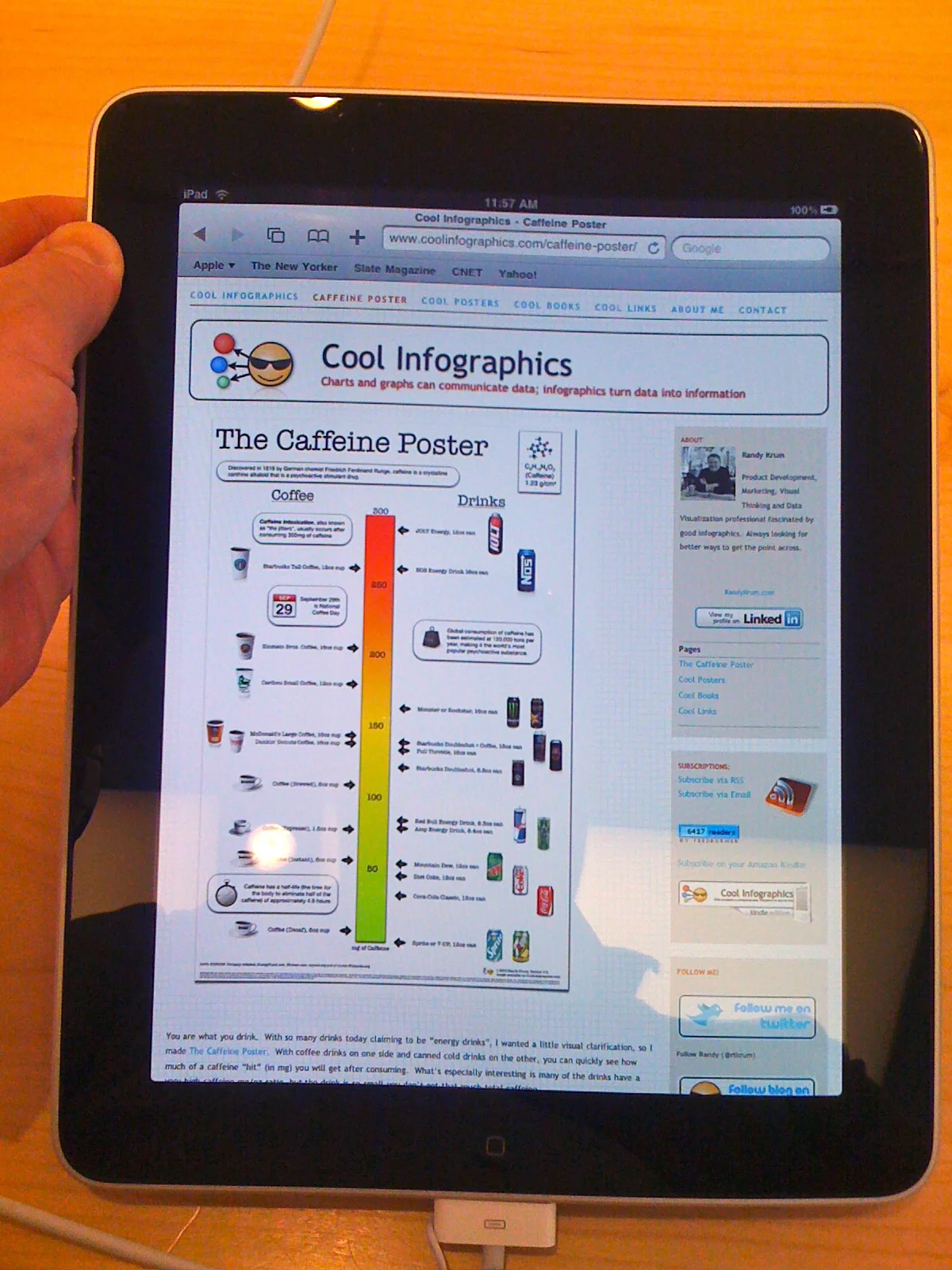
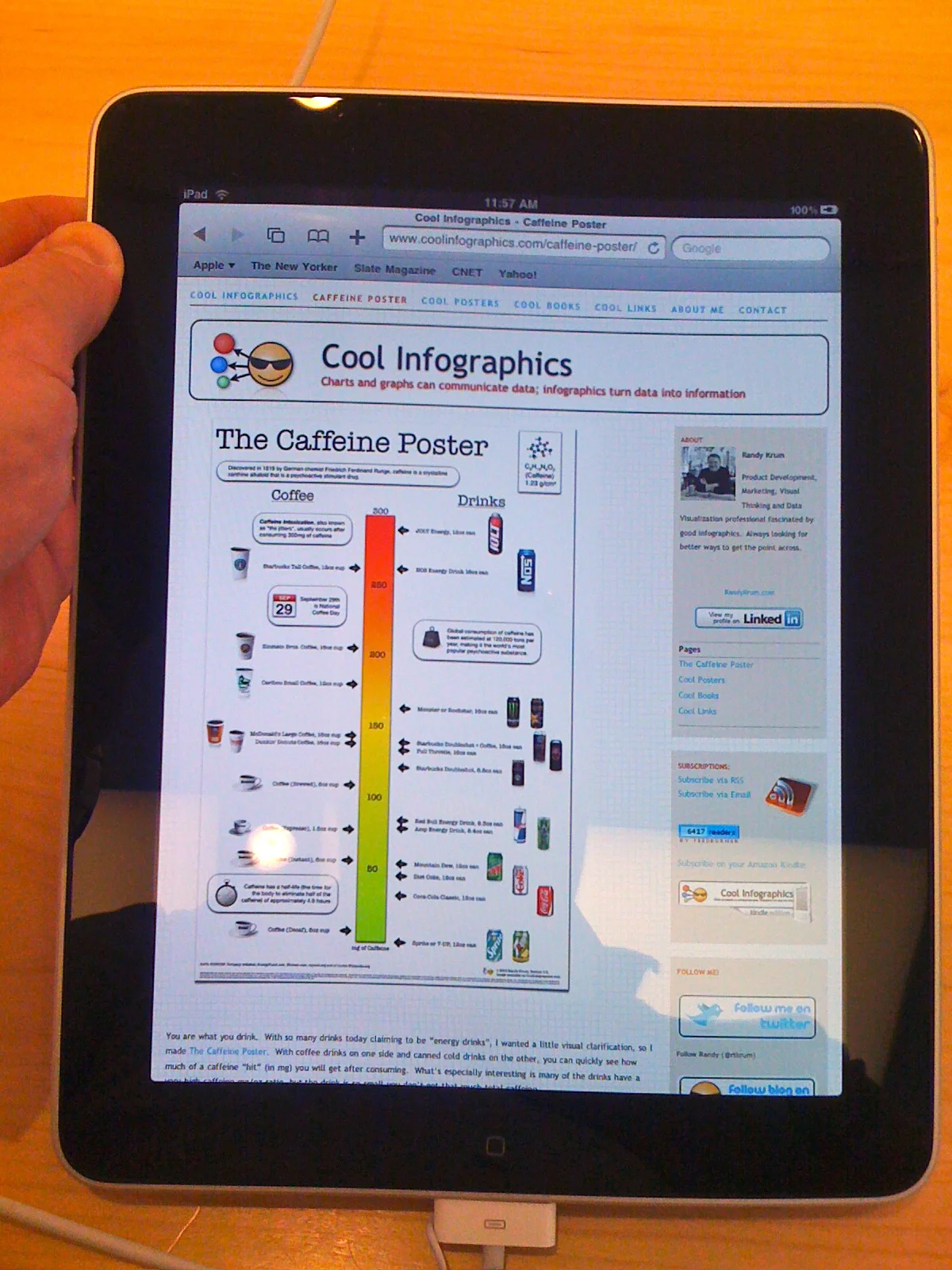
At the Southlake Apple Store

I was at the Southlake Apple Store today because the battery in my Black MacBook was dying.  In fact, it was swelling up, getting extremely hot and randomly shutting the MacBook down.  That was a problem.  The laptop is 3 1/2 years old, which it puts it 2 years beyond the AppleCare warranty, so I had to buy a new battery.  The Apple genius told me that usually this type of battery last 260 cycles, and mine had lasted 484 cycles.  Not bad.

While I was there, I had to play with one of the new iPads, and of course had to make sure that Cool Infographics was displaying correctly.  Not only was it displaying correctly, but the display on the iPad makes the blog look amazing!

Here’s how to setup an icon on your iPad, iPhone or iPod Touch for the Cool Infographics blog: (screen shots from my iPhone)
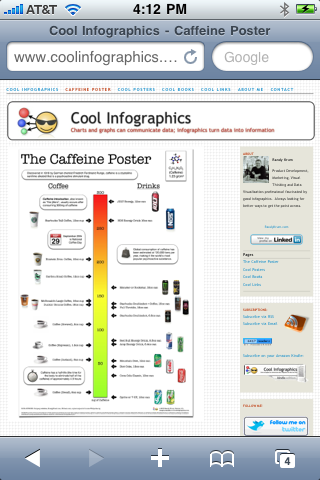
 

Step 1:

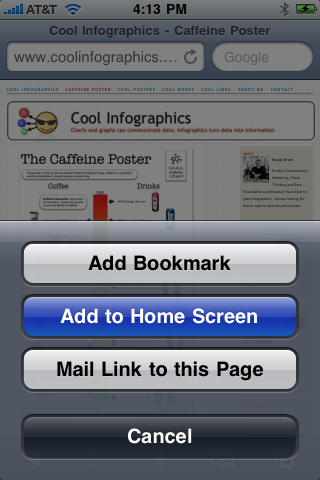
View CoolInfographics.com in the Safari app and press the “+” icon at the bottom of the screen.


Step 2:

Press the “Add to Home Screen” button.


Step 3:

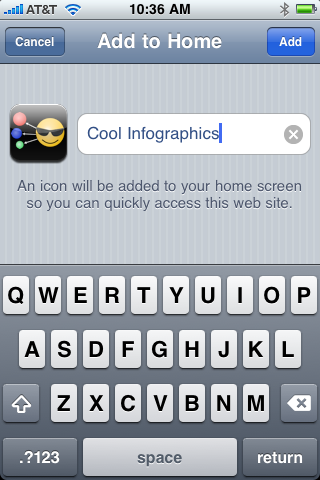
Edit the name you want to display, and press “Add”.  (The icon is loaded automatically)
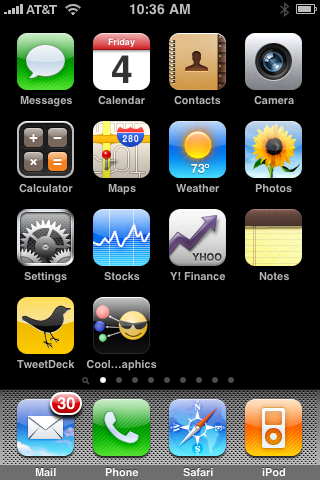


That’s it!  You can move the icon to any of your screens, and always have easy access to the Cool Infographics blog.


PrintView Printer Friendly Version

EmailEmail Article to Friend